| home
| products | community
| about aQtive | download | help |
|
|
|
|
|
| community > developers > developers pack > XML Qbits > adding Qbits to onCue |
|
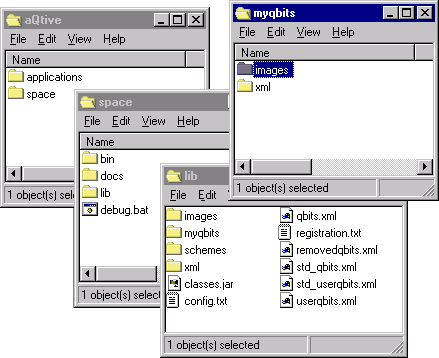
adding XML Qbits to onCue You have produced your own XML Qbit, or you want to use one from someone else. Before you can use it, you need to install it where onCue can find it. Note - if you are installing a third-party Qbit: before you install code of any kind on your machine you should satisfy yourself that you trust the source. This is true of any code, although XML Qbits are far safer than most. step 1 - find the aQtive folder You need to store your XML files in the place where onCue was installed. The default location for this is: C:\Program Files\aQtive, but you may have asked it to install somewhere else. If you don't know where it is, either use Find Files from the Start menu, or look at the shortcut properties on the onCue shortcut on the desktop. When you find the aQtive folder, open the folder in it called space. Open the folder user, which is where you will be putting your icons and xml files. then open lib inside that. In the lib folder you will find the file myqbits.xml which you will need to edit at step 4 below.
step 2 - copy your icon Copy your icon (e.g. rat.gif) and put it into the images folder inside user. If you are installing several Qbits, just copy all the icons in here. step 3 - copy your XML file Copy your XML file (e.g. myPetQbit.xml) and put it into the xml folder inside user. Again, if you are installing several Qbits, just copy all the XML files here. step 4 - tell onCue about your Qbit This is where you need to edit the file myqbits.xml. Make a copy of it before you edit it - just in case :-) Open the file using Notepad - do not try to double-click on myqbits.xml unless you know you have an XML editor. Instead, open Notepad from the Start>Programs>Accessories menu and then use its File>Open menu. When you see the 'open' dialogue box select 'All files' in the 'Files of Type' section and then browse down to myqbits.xml. When you have opened myqbits.xml scroll to the end. The last line should read </QbitList> You need to insert some text just before this line. Make a few blank lines' space and then enter the following (copy and paste from here if you like):
    <Qbit>
    <Action>Combined</Action>
    <Class>com.aqtive.qbits.xmlgenerated.XmlGeneratedCombined2</Class>
    <Constructor>
    <Parameter N="0">Pet Lovers Heaven</Parameter>
    <Parameter N="1">user/xml/myPetQbit.xml</Parameter>
    </Constructor>
    </Qbit>
Of course, put your own Qbit name and xml file name instead of Pet Lovers Heaven and myPetQbit.xml. If you are installing several files, just add one of these <Qbit>...</Qbit> sections for each Qbit. step 5- there is no step 5! That's all there is to it. Your changes won't take effect until you restart onCue. Go back now to the particular recipe you have been following. Recipes to extend onCue |
 |
 |
 |
|
|
home | products | community | about aQtive | download | help |