| home
| products | community
| about aQtive | download | help |
|
|
|
|
|
| community > developers > developers pack > onCue - how it works |
onCuehow it works!27th September, 1999 * onCue,
aQtiveSpace and aQtive are trademarks of aQtive limited abstractThis report describes the way onCue works 'under the bonnet'. The aim of this document is to give prospective developers and interested researchers an understanding of the way in which the components of onCue fit together. The report starts with a simple scenario looking first from the user's viewpoint and then, in increasing detail, at the way this is implemented within onCue. onCue is built on top of the aQtiveSpace architecture and the final point of the report is the implementation of onCue using aQtiveSpace primitives. However, rather than dropping straight into this level of detail, the operation of onCue and its underlying algorithms are also described in broader architectural terms. contentsbackgroundonCue was launched in the UK on 6th July 1999. By the end of the year more than 1/2 million users in the UK will have onCue on CD and more have downloaded onCue through the Internet. onCue is a unique product. It has aspects of an active toolbar, an intelligent portal and a software agent. It watches everything that is copied to the clipboard, uses 'appropriate intelligence' to suggest suitable Internet services and desktop applications, and automates the use of the data in chosen services. For many readers of this report, the most important thing about onCue is that it is extensible. Developers can add their own components (called Qbits) into the onCue framework. Given onCue is able to work with data from any application, this effectively means one has a 'universal plug-in'. Separate documents describe how to construct Qbits either coded in Java or using XML description files. In this report we will concentrate on the overall framework. onCue is built on an underlying platform called aQtiveSpace, which itself is built using Java and the Java Virtual Machine. The details of aQtiveSpace are described in a parallel document (aQtiveSpace - how it works). The first part of this report is an illustrated scenario of the use of onCue from the user's perspective. Then we look at the architecture of onCue and the way in which different Qbits interact with the onCue framework. For each step of the original scenario, we see what happens inside onCue. This is then presented as an approximate serialised flowchart and a more accurate pseudocode of the concurrent rules used by onCue. Finally, we look at the way the Qbits are encoded in aQtiveSpace and the scenario is re-enacted from this even more detailed viewpoint. a scenario
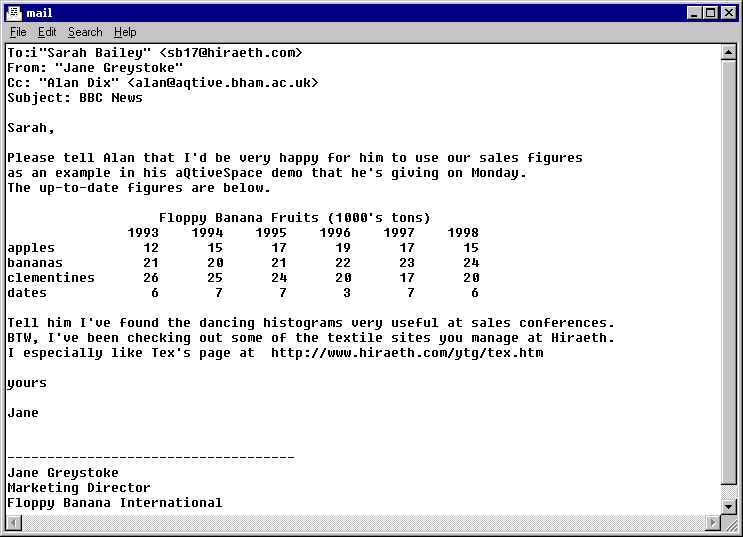
step 1 - launching onCueSarah starts up onCue. Initially a small floating window appears with a few icons in it allowing her to get information and help about onCue and to set preferences, etc. step 2 - workingSarah then starts to look at her email, she finds a message from a colleague (Fig 1). The message contains text and also a table (laid out with spaces) as well as the URL of a web page.
Fig 1. Sarah opens her email step 3 - copy a word
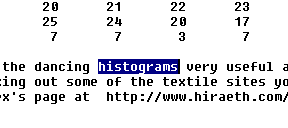
Fig 2. Sarah selects word in email message onCue
suggests looking up "histograms" in various online search engines: AskJeeves
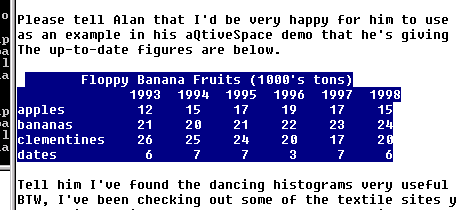
step 4 - choose an iconShe clicks the thesaurus icon and onCue launches a web browser and directs it to the thesaurus service which then returns a web page listing similar words such as chart, diagram, etc. step 5 - copy a tableAfter looking at this for a while Sarah selects and copies the table in the text (Fig 3):
Fig 3. Sarah selects table in email message 
This
time the search engines are not suggested. Instead onCue suggests three
desktop programs: Dancing Histograms step 6 - dancing histogramsShe
clicks the Dancing Histograms icon
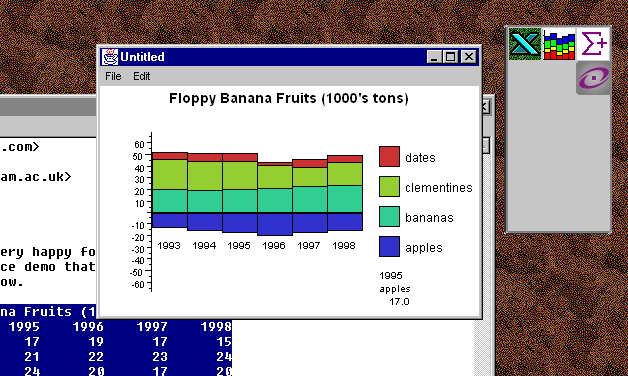
Fig
4. Sarah clicks the histogram icon step 7 - Excel chartsShe
interacts with this for a while. She then goes to the Excel icon
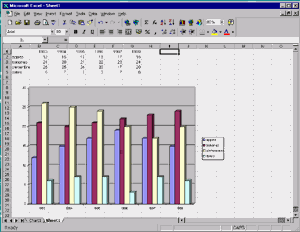
Fig
5. Sarah selects the Excel icon what happens insideWe'll go through the same scenario again, but this time look at what is happening inside onCue. step 1 - launching onCueWhen onCue launches it loads a collection of Qbits. Some of these are integral to the product:
Other Qbits are optional. A configuration file is used to record which need to be loaded and the user can modify this set via the onCue preferences (or edit the files directly if brave!). Some of these are coded in raw Java and some use the XML API which allows some matching and invocation of web services. The optional Qbits are of two kinds:
In addition to all these Qbits there is the code for the aQtiveSpace, the underlying component infrastructure, and the onCue framework, the code built on top of aQtiveSpace which brings together the other onCue components.
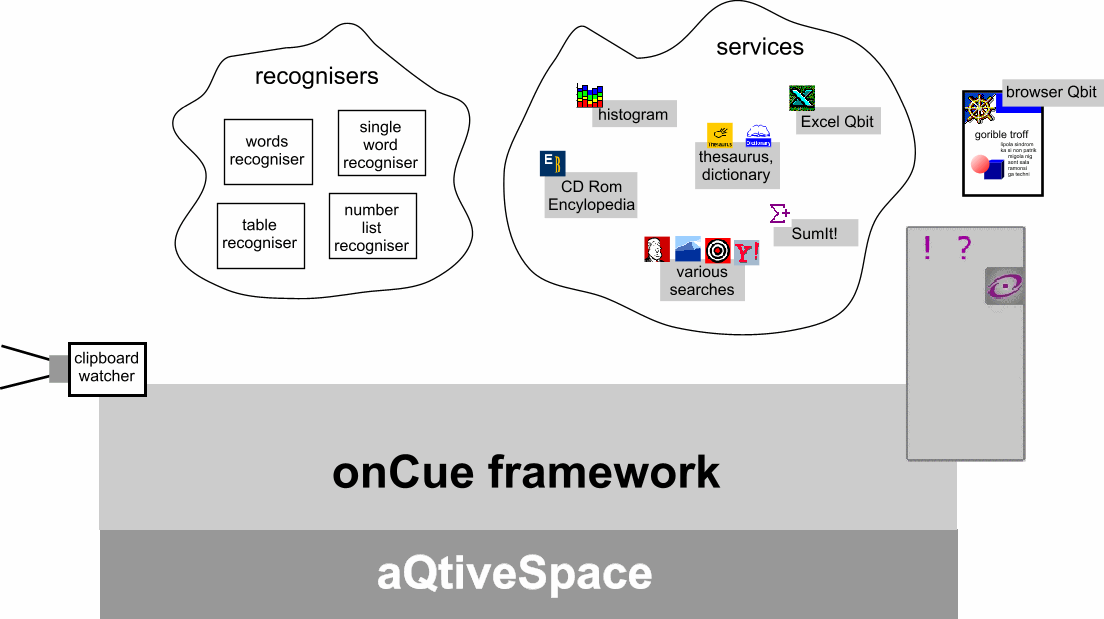
Fig 6. Components in onCue In one sense the onCue framework (OCF) is simply another component, but it is special as it acts as the 'glue' between the other Qbits, orchestrating their efforts. Furthermore, the other Qbits must be written to special patterns to enable the OCF to link them together. Each of the services has a data type that it is willing to accept. In this example:
Each recogniser has a type it is willing to look at (in-type) and a type it recognises (out-type). The meaning of these will become clear as we discuss later stages:
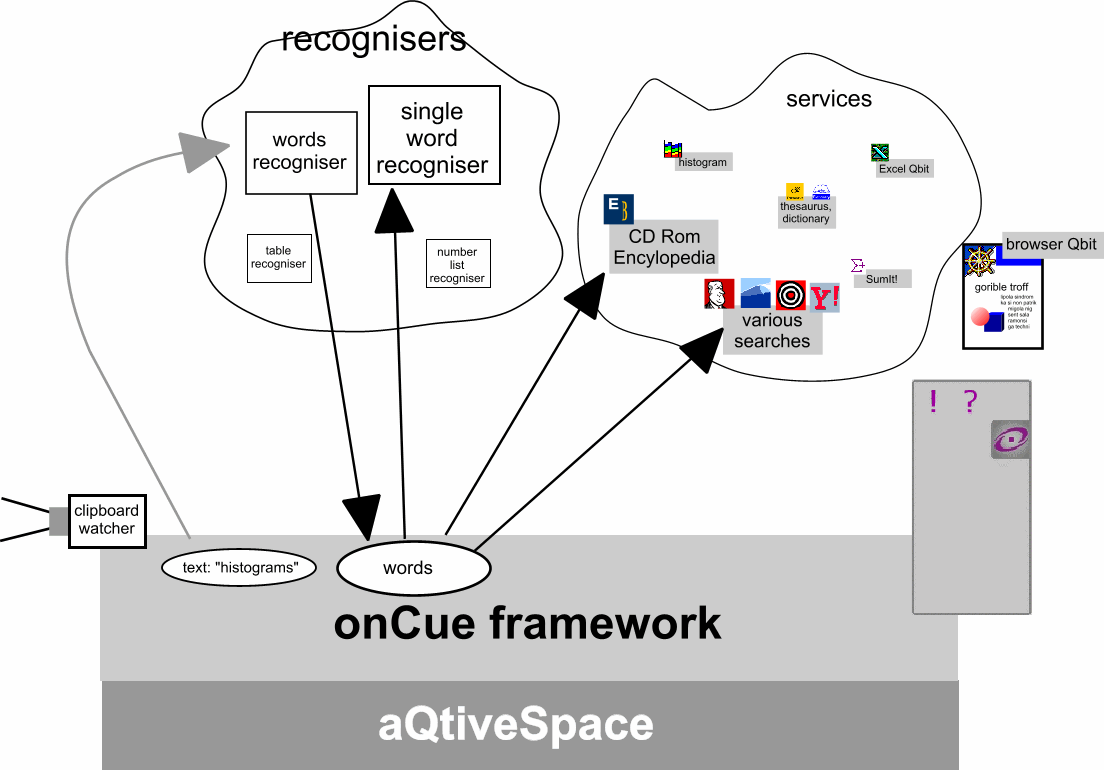
step 2 - workingonCue silently sits in the background, doing nothing except for the clipboard watcher, which simply waits for a copy or cut to happen. step 3 - copy a wordWhen the user selects and copies the word "histograms", the clipboard watcher notices and passes the copied text to the onCue framework. onCue looks for recognisers or services that can use the text. The recognisers Wr, Tr and NLr are all activated.
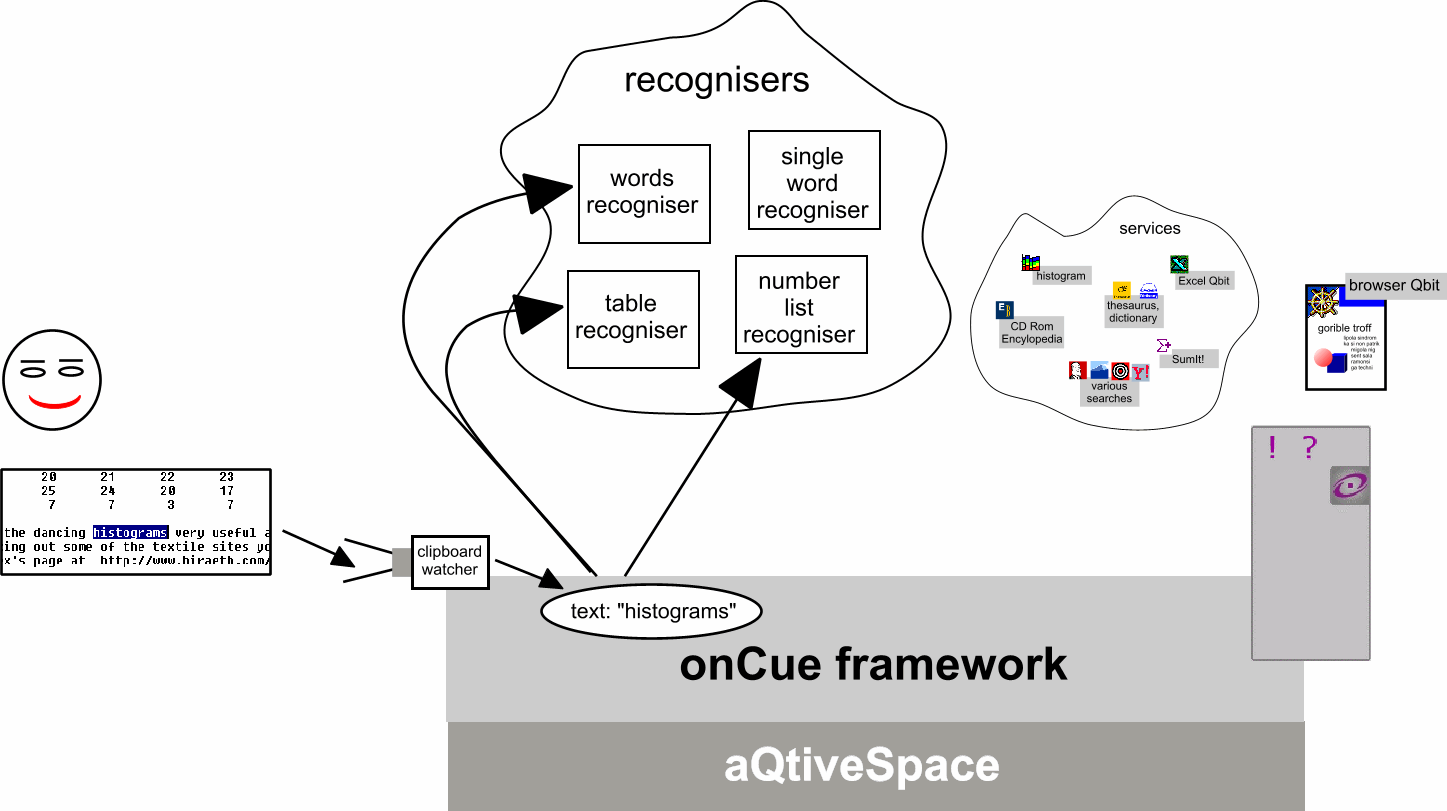
Fig 7. onCue activates recognisers that can accept text Tr and NLr both fail to recognise the text (it is neither a table nor a list of numbers), but Wr does. The words recogniser simply looks at the text and decides whether it could be considered a sequence of 'words'. It clearly can and so it announces to the OCF that the text can be regarded as words. onCue records this. Because it now knows the selected text is words it can activate the single word recogniser SWr (this is based on matching the in-type of SWr). At the same time it activates the web search services, encyclopaedia, etc., as all of these just expect words. Note that the recognition that the text is a collection of words also involves posting back to onCue data structures that make it easy to view the text as a series of words.
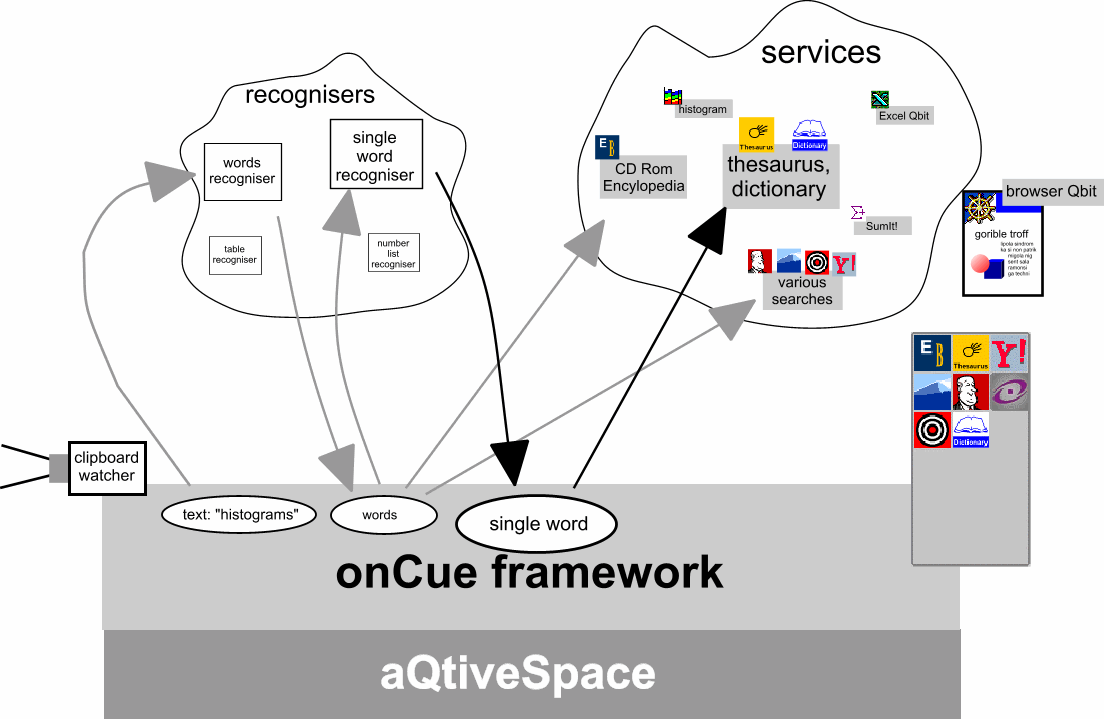
Fig 8. Text recognised as consisting of words SWr recognises that the words are in fact also a single word (there is but one of them!). It announces this back to the OCF. Now the OCF can activate the thesaurus and dictionary services as they require a single word each.
Fig 9. Text recognised as a single word 
Finally, the icons of all the active services are displayed in the onCue window. Notice that:
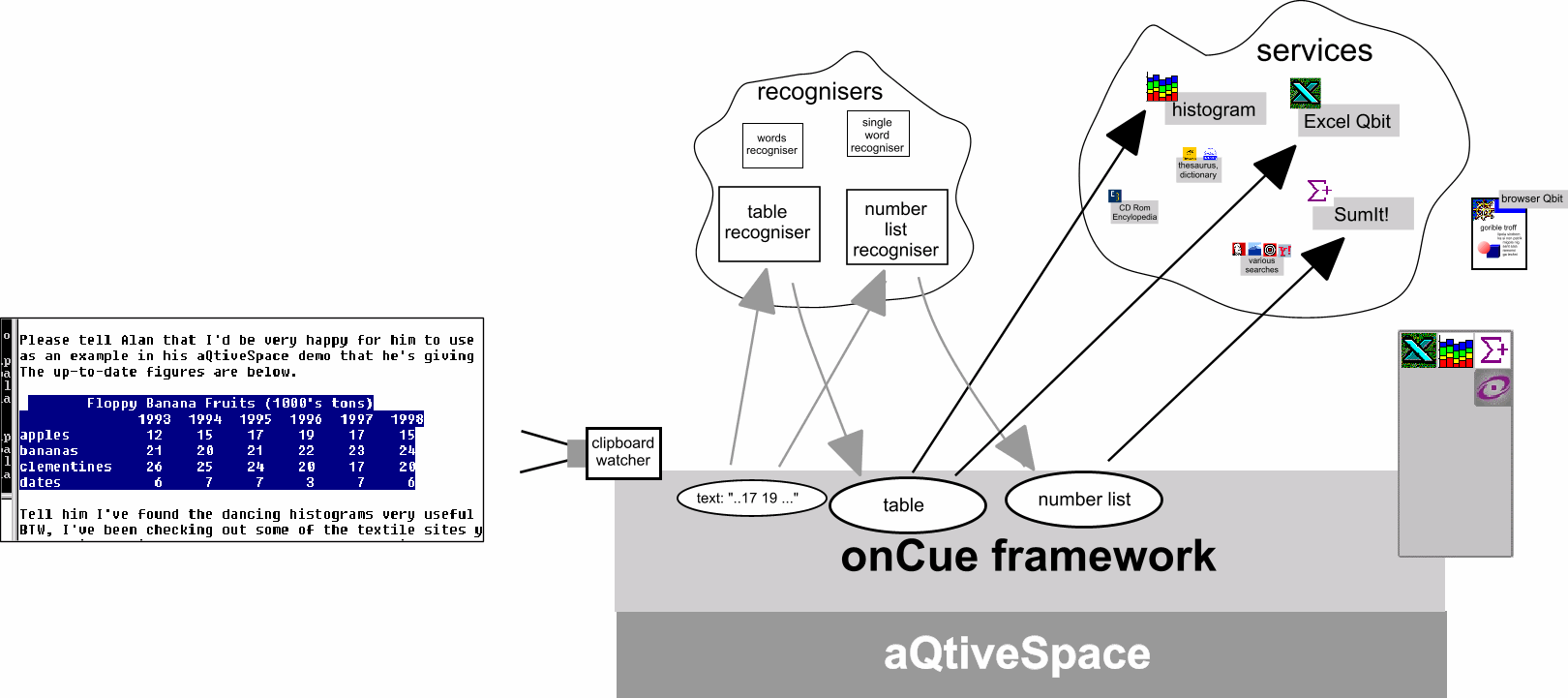
step 4 - choose an iconWhen the user selects an icon in the onCue window, the OCF goes back to the service and asks it to perform its action. In the scenario this was the thesaurus icon. This Qbit simply generates a URL, which the OCF passes to the browser Qbit, which in turn runs an external web browser to view the page. The OCF treats services that generate a URL for the browser specially as they are so common, it asks the service for the URL and then OCF passes this to the browser. Other kinds of Qbits have to do everything themselves! step 5 - copy a tableThe case of the copied table is very similar. Initially all the OCF knows is that it has seen more copied text. It therefore passes this to the same three recognisers for processing: Wr, NLr and Tr. This time the words recogniser fails to recognise it (too long, split over several lines and too many numbers). However, the number list recogniser (NLr) does recognise it as it ignores the other words and looks for any numbers in the data. The table recogniser also recognises the data as a table.
Fig 10. Text recognised as a table and as containing numbers This time there are no repeat runs through the recognisers as none of the recognisers can deal with tables or number lists (just generate them). However, two services require tables (histograms and Excel) and one requires a number list (SumIt!). These three services are then activated and presented to the user as icons in the onCue window. In this case both the recognisers themselves and the data structures they post back are more complex. For the table this includes:
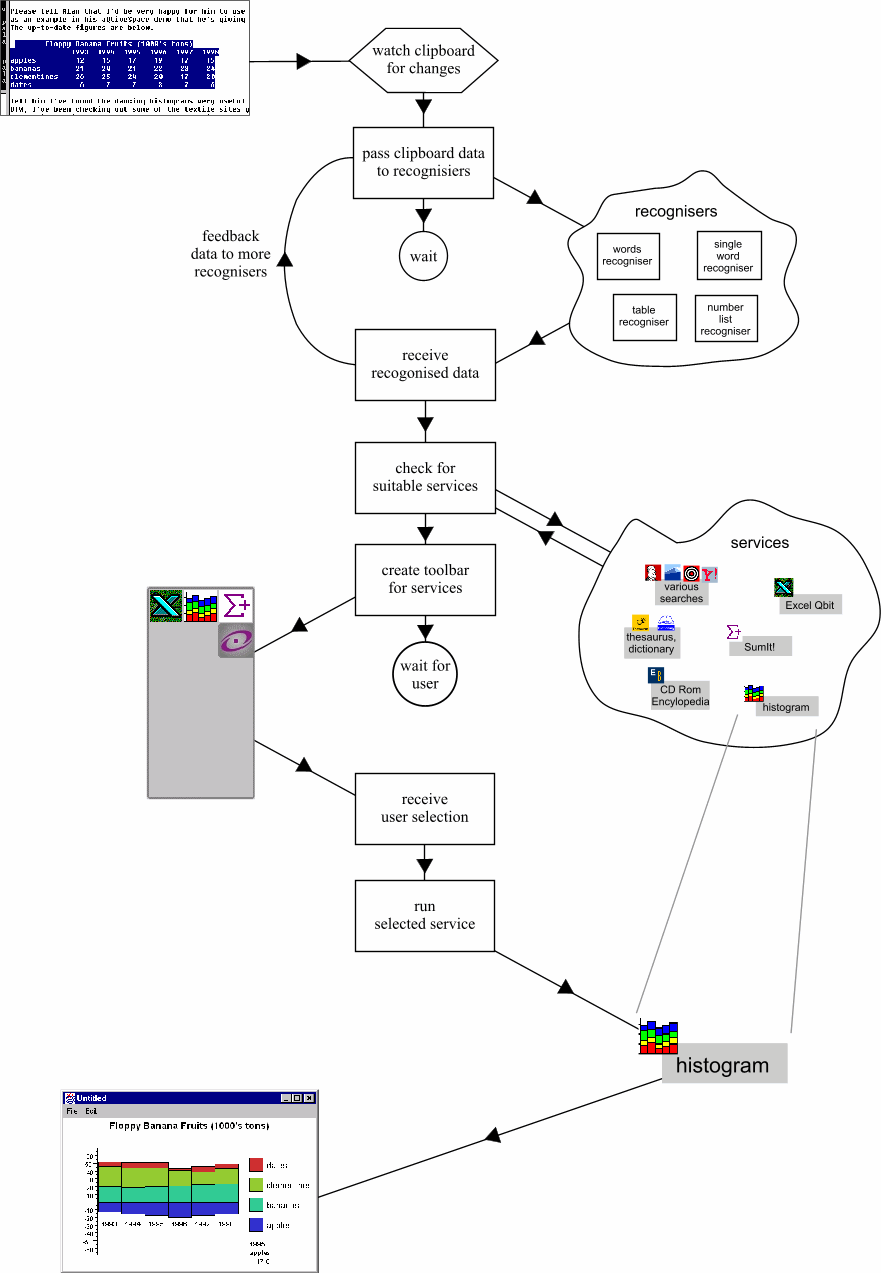
However, the same principles hold as for the simple word recognisers. The text is recognised as having a certain form and the fact that it does, together with transformed data, is 'announced' to all Qbits that can use this type of data. Just as with the word recognisers it would be possible to have a multistage recognition process; for example, we could have a recogniser for 'square' tables where the row and column sizes and labels are the same. This would be a recogniser with a table as an in-type and a square table as an out-type. step 6 - dancing histogramsWhen the user selects the histogram icon the OCF simply passes the table data to the histogram Qbit and asks it to perform its actions. It only has a single action it can perform, which is to take the table data and display it as an interactive histogram. This Qbit is a sort of mini-application, which happens to run entirely within the aQtiveSpace. step 7 - Excel chartsWhereas the histogram only has a single action, there are several possible actions that the Excel Qbit can perform on the table data including pasting the table into an Excel spreadsheet and using various of the Excel charting functions. The user therefore chooses the appropriate actions from a menu that drops down from the icon. Note that only actions that are appropriate for the table data are suggested. The user chooses the 3D chart. The Excel Qbit then starts Excel if it not already started, and then remotely controls the Excel application to produce the chart. The user need perform no further interaction to create the chart. In this case, the Excel service Qbit acts as a wrapper or controller for the existing application on the user's desktop. the algorithmAs described above, there is a rough order to the events in onCue after the clipboard changes. Figure 11 shows an approximate flow chart for this. However, the actual implementation of onCue is highly asynchronous, with multiple concurrent activities, and this flowchart is just the closest sequential rendering of the algorithm. The actual algorithm is better regarded as a set of simultaneously active 'when event happens do something' rules: rules for onCue framework
distribute data: The asynchronous nature of onCue is essential given its constant activity and close working with the Internet. Some recognisers may require network interactions (for example, looking up the DNS entry for an IP address). Others may encounter delays due to interactions with other programs on the same machine (for example, the Microsoft Word spell check Qbit). Furthermore, onCue deliberately runs these activities at low priority so as not to disrupt the user's work. If onCue waited for each of these to complete, it would constantly be getting left behind the user. Instead, each of the recognisers acts concurrently and posts results asynchronously. The effect is that when any chain of recognition leads to an activated service, that service can be shown on the onCue window, even if more complex recognition tasks are incomplete. This asynchronous mode of operation is made simple by the use of aQtiveSpace and the next section describes how onCue is built using aQtiveSpace primitives.
Fig 11. onCue 'flowchart' onCue Qbits in aQtiveSpaceEach recogniser and service is an aQtiveSpace Qbit. However, they are each built within a specific pattern. Also, onCue services that result in a web browser being launched have a special pattern to make it easier to program. In addition, the clipboard watcher and default browser have special Qbit patterns. recogniser QbitsEach recogniser has two nodes: TryRecognise and Recognise. The recogniser may have other nodes as well, but these are ignored by the onCue framework (OCF). The TryRecognise node is settable and corresponds to the input of the recogniser. The Recognise node is listenable and corresponds to the output. service QbitsEach service has one or more of the following: A settable node called TryProvide and corresponding listenable node called Provide - used for services that return copy new data items to the clipboard, for example, the SumIt! Service that adds together selected numbers and copies back the result. Any other settable node - used for services that perform actions, for example, the histogram that launches a window. A callable node returning a result of type URL - used to call a browser, for example the Thesaurus service. clipboard watcher QbitThe clipboard has one node that is listenable, to announce changed clipboard contents, and settable, to copy back new clipboard data to. The clipboard may contain different types of data, so has a 'variant' input and output type. browser QbitThis simply has a single settable Location node to set the URL to visit. step 1 - launching onCueWhen OCF initialises it registers itself as a listener with the clipboard, all the recogniser Qbits' Recognise nodes and all the service Qbits' Provide nodes. step 2 - workingUntil the user performs a copy onCue is quiescent. step 3 - copy a wordThe clipboard watcher Qbit notices the changed clipboard contents (using platform-specific code). It checks for any listeners and performs a set on them all. In particular, it will set the node used by OCF when it registered itself with the clipboard watcher. OCF now obtains the raw type of the clipboard data (text, image, etc.). In the example scenario, only text was important. However, it is possible to have recognisers and services that operate on images and other types of data. In this case, the data was text. OCF looks at the type of each recogniser's TryRecognise node. If any match it 'sets' their TryRecognise nodes. Some recognisers may instantly be able to check the text, others may need to consult local or network resources. If the recogniser doesn’t recognise the text it does nothing. If it does recognise it, it tells all Recognise listeners, in particular the OCF . OCF matches this revised data type against all the recognisers' TryRecognise nodes and sets the TryRecognise node of any that match, these may again recognise the data, etc. On each of these cycles, OCF also checks the input types of settable and callable nodes of services. If any match the data the service Qbit and node are marked as active and the Qbit icon is added to the onCue window. OCF also keeps track of which of the converted data is relevant for each particular service. The exception to this is the TryProvide node which the OCF sets there and then. The service Qbit can then announce zero, one or more copyable data items using its Provide node (in a similar fashion to recognisers). In particular, this will include notifying OCF, which records the copyable data for later use and marks the service as active. Depending on how fast the recognisers operate, this process may finish before the user has time to act, or if some of the recognisers are slow, extra services may be added even as the user interacts with the onCue window. step 4 - choose an iconWhen the user selects an icon in the onCue window, the OCF examines the settable or callable nodes of the service whose input types match the available data. If there are several, the user will be offered a menu to select the desired action. The system then performs the action in one of three ways:
In the case of the scenario, the user clicked the thesaurus icon. The thesaurus Qbit has a callable node that returns a URL consisting of the thesaurus's web address followed by appropriately coded parameters containing the word to be looked up. This is then processed by the thesaurus's web server in the normal fashion. step 5 - copy a tableThis is similar to step 3 except that different recognisers and services become active. step 6 - dancing histogramsAgain similar to step 4 except we have case 2 (settable node). OCF sets the relevant node and the histogram Qbit uses this as a signal to create its window, etc., the data that is set is the data structure codifying the table state. This is used directly to draw the histogram. step 7 - Excel chartsSimilar to stage 6, except this time the Excel Qbit, when set, uses the underlying platform's inter-application communication mechanism to ask Excel to display the chart. |
 |
 |
 |
|
|
home | products | community | about aQtive | download | help |
 , Hotbot
  ,
AltaVista
,
AltaVista  , and Yahoo
  ;
an online thesaurus
;
an online thesaurus  and dictionary
 ; and also suggests looking
it up in the online Encyclopaedia Britannica
; and also suggests looking
it up in the online Encyclopaedia Britannica 
 ,
SumIt!
,
SumIt!  , and Microsoft Excel
 .
.